Short answer: For most readers, the best AI research tool is the one that can verify sources, handle long documents, and produce usable notes without hiding citations. Start with one paid general tool, test it against the same research question, and only add specialist tools when citation quality or team workflow justifies the cost.
Updated May 11, 2026. If you need one AI research tool for serious work, start with ChatGPT Deep Research for long, cited reports. Use Perplexity when you need fast source discovery, Gemini Deep Research when you want Google-style research reports and visuals, Claude Research when careful reasoning plus connected work context matters, and NotebookLM when you already have a trusted source library.
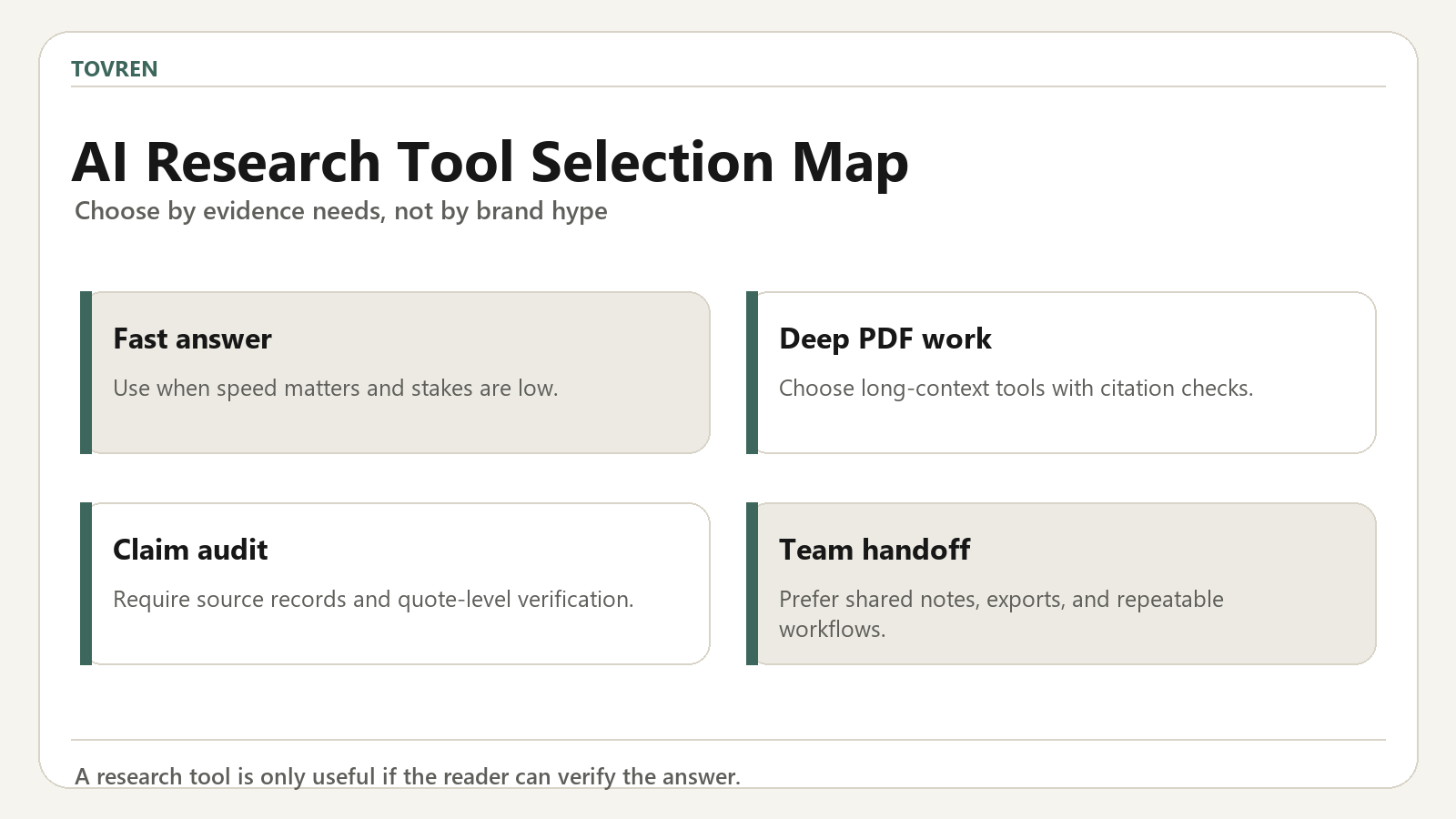
This is a practical guide, not a generic ranking. The right tool depends on your research job, source control needs, output format, and how much verification you are willing to do.
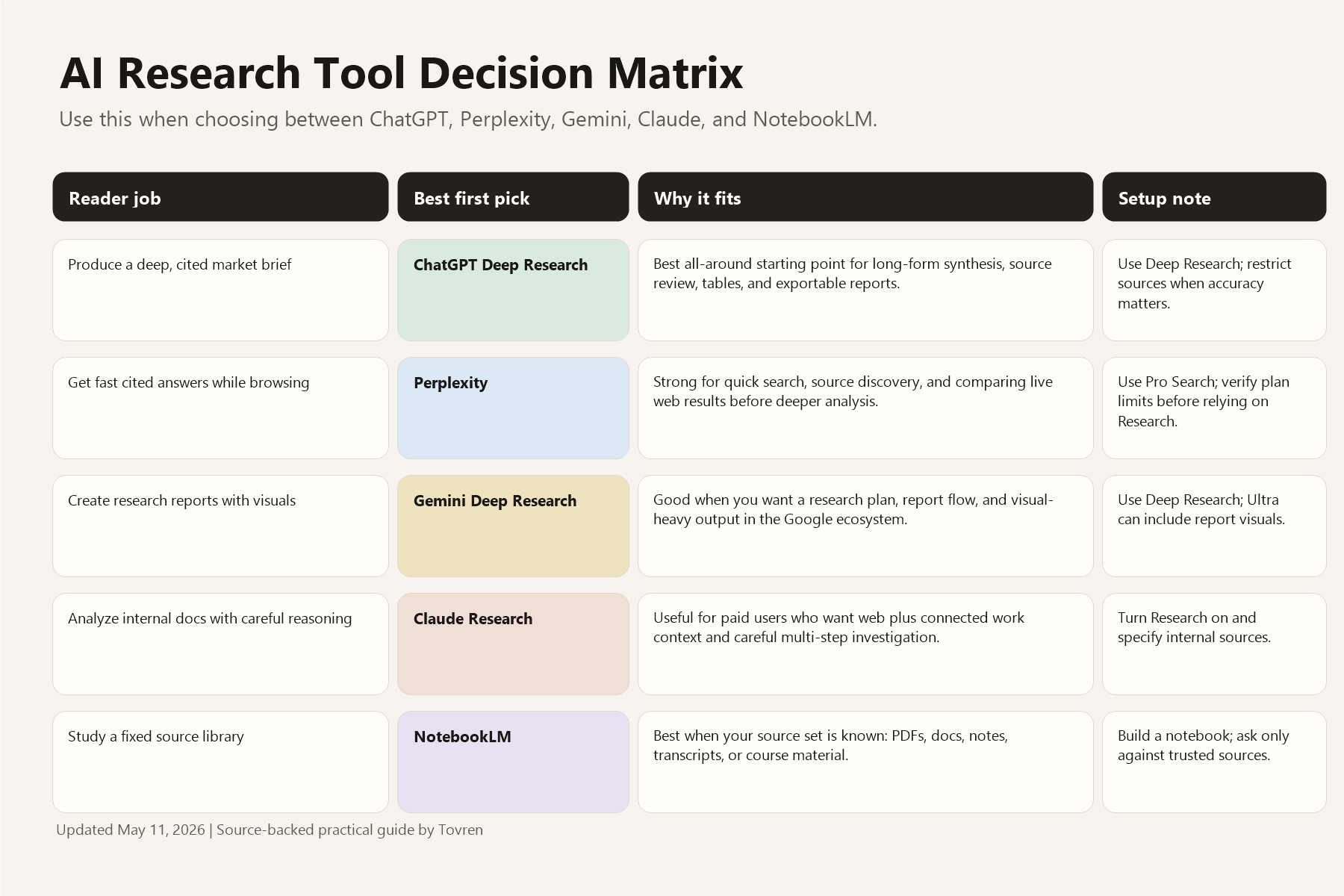
Quick Verdict
| Use case | Best first pick | Why | Watch out for |
|---|---|---|---|
| Deep market brief, competitor research, or source-heavy report | ChatGPT Deep Research | Strong all-around synthesis, source review, tables, and long-form report output. | Still verify important sources and ask for a source log. |
| Fast cited answers and live web source discovery | Perplexity | Good for quick web research, source trails, and finding pages to inspect manually. | Plan limits and Research access can change, so check your account before relying on it. |
| Research report with visual explanations | Gemini Deep Research | Google documents that Deep Research can create plans and reports; Ultra reports may include charts, diagrams, and interactive visuals. | Some visual features are plan-dependent and not available with certain source combinations. |
| Careful reasoning over web plus connected work context | Claude Research | Claude Research is available to paid users and can work across the web and connected internal context when enabled. | You may need to explicitly tell Claude to use Research and specify sources. |
| Research against your own PDFs, notes, transcripts, or course material | NotebookLM | Best when you want source-grounded answers from a fixed source set. | Limits depend on NotebookLM tier; keep notebooks clean and source sets focused. |
Best Overall: ChatGPT Deep Research
Choose ChatGPT Deep Research when the output needs to look like a finished research report: market landscape, competitor comparison, product buying guide, policy explainer, or executive brief. OpenAI describes Deep Research as an agent that finds, analyzes, and synthesizes many online sources into a comprehensive report.
How to use it
- Open ChatGPT and choose Deep Research.
- Write the research goal, audience, geography, date range, and sources to prefer or avoid.
- Ask for a source log, comparison table, risk notes, and unanswered questions.
- After the report is generated, check the cited sources manually before publishing or making decisions.
- Turn the best table or decision matrix into an uploaded image asset for your article or report.
Prompt to copy:
Use Deep Research to compare [topic/tool/category] for [reader].
Prioritize official docs, pricing pages, release notes, and credible reviews.
Return: verdict, comparison table, best use cases, risks, pricing/limit notes, source log, and 5 checks I should verify manually.
Best for Fast Source Discovery: Perplexity
Use Perplexity when you need to quickly discover current pages, compare sources, and build a starting source list. Perplexity’s own plan guide positions Pro for advanced AI, frequent research, file analysis, and image generation, while Max and Enterprise Max increase access for heavier research use.
How to use it
- Start with a narrow question, not a broad topic.
- Use Pro Search for current-source discovery.
- Open the sources it cites and check whether they actually support the answer.
- Save useful threads or sources into a research workspace.
- Move the final synthesis to ChatGPT, Claude, Gemini, or your editor if you need a polished report.
Best prompt: “Find the most current official sources and credible comparisons for [topic]. Separate confirmed facts from commentary. Give me only sources worth opening.”
Best for Visual Reports: Gemini Deep Research
Gemini Deep Research is useful when you want a research plan first, then a report. Google says Gemini creates a research plan, lets you edit it, and then starts the report. Google also notes that Ultra reports can include visuals such as charts, diagrams, and interactive simulators.
How to use it
- Open Gemini and select Deep Research.
- Ask for a research plan before the report begins.
- Edit the plan so it includes the exact questions you need answered.
- Request a visual summary: chart, diagram, or timeline.
- If you use Workspace sources, check current feature limitations before relying on visual output.
Best for Careful Research with Work Context: Claude Research
Claude Research is best when you want careful written reasoning and the task may require connected context. Anthropic says Research is available on paid Claude plans and can work across web and connected internal context such as Gmail, Google Calendar, and Google Docs when those integrations are connected.
How to use it
- Turn on the Research button.
- Tell Claude exactly what sources to use: web, internal docs, or both.
- Ask Claude to state what it could not verify.
- Request citations and a final “confidence by claim” table.
- Use it for memos, internal analysis, policy review, and research that needs careful caveats.
Best for Your Own Sources: NotebookLM
NotebookLM is the best choice when the research universe is fixed: a folder of PDFs, internal notes, customer interviews, transcripts, research papers, or a course pack. Google’s NotebookLM help page lists higher limits for paid tiers, including more notebooks, sources per notebook, chats, reports, flashcards, quizzes, mind maps, and Deep Research searches.
How to use it
- Create one notebook per project, client, course, or research question.
- Add only trusted sources. Do not mix random web pages with important internal material unless you label them clearly.
- Ask source-grounded questions: “Which source supports this?” and “Where do the sources disagree?”
- Generate briefs, mind maps, reports, or study assets from the source library.
- Keep a separate “source update” note so you know when the notebook becomes stale.
45-Minute Research Workflow
| Time | Step | Tool | Output |
|---|---|---|---|
| 0-5 min | Define the question, reader, geography, date range, and decision needed. | Any note app | Research brief |
| 5-15 min | Find current official sources and credible secondary sources. | Perplexity or Gemini | Source shortlist |
| 15-30 min | Generate a structured report with source log, comparison table, and open questions. | ChatGPT Deep Research or Gemini Deep Research | Draft report |
| 30-38 min | Check claims, sources, dates, plan limits, and contradictions. | Manual review plus Claude/ChatGPT | Fact-check notes |
| 38-45 min | Create a decision matrix or chart image and final recommendation. | ChatGPT, spreadsheet, or design tool | Publishable visual and verdict |
Common Problems and Fixes
| Problem | Likely cause | Fix |
|---|---|---|
| The answer sounds confident but the citations are weak. | The tool summarized sources without checking claim-level support. | Ask for “claim, source, exact evidence, confidence” in a table, then open the links. |
| The report is too broad. | The prompt did not define reader, geography, decision, or time window. | Add constraints: audience, country, budget, date range, and output format. |
| The tool misses internal context. | Workspace, Drive, Docs, or uploaded sources were not connected or specified. | Name the exact internal source and ask the tool to cite it separately from the web. |
| Plan limits block the workflow. | Research tools often have monthly or daily caps. | Use fast search first, reserve deep research runs for the final question, and check official limits before subscribing. |
| The visual is not publishable. | The tool produced a table but not a clean image asset. | Export the matrix as PNG/WebP, add alt text, and include a text version for SEO. |
Final Recommendation
Most readers should use a two-tool stack: Perplexity for fast source discovery and ChatGPT Deep Research for the final synthesized report. Add NotebookLM when the source set is fixed, Gemini Deep Research when you want visual report output, and Claude Research when the task benefits from careful reasoning across web and connected work context.
FAQ
What is the best AI research tool overall?
For most serious research reports, ChatGPT Deep Research is the best first pick. It is strongest when you need structured synthesis, source review, tables, and a polished report. Use Perplexity first if your main job is finding current sources quickly.
Is Perplexity still worth using?
Yes, if you use it as a fast source-discovery tool. Before paying mainly for Research, check Perplexity’s current plan limits in your account and the official plan guide.
When should I use NotebookLM instead of ChatGPT?
Use NotebookLM when your sources are already known and trusted. It is better for studying or interrogating a fixed library of PDFs, notes, reports, transcripts, or course material.
Which tool is best for charts and visual research reports?
Gemini Deep Research is worth testing first for visual-heavy reports because Google says Ultra reports can include charts, diagrams, and interactive simulators. For publishing, still export the final visual as a clean image asset.
Source Log
- OpenAI: Introducing deep research – used for the description of Deep Research as a research agent.
- OpenAI: ChatGPT pricing – used for plan availability of Deep Research, apps for deep research, image generation, and interactive tables/charts.
- Google: Gemini Apps limits and upgrades – used for Gemini Deep Research limits and plan caveats.
- Google: Use Deep Research in Gemini Apps – used for Gemini Deep Research workflow and visual-report notes.
- Google: Upgrade NotebookLM – used for NotebookLM tiers, source limits, reports, and data handling notes.
- Anthropic: Using Research on Claude – used for Claude Research availability and usage behavior.
- Perplexity: Which subscription plan is right for you? – used for Perplexity plan differences, Research limits, file limits, privacy notes, and best-fit guidance.