Short answer: Codex on iOS is useful for triage, quick edits, reviews, and issue planning. Do not use it as your final merge environment; use desktop review, tests, and repository checks before shipping.
Updated May 16, 2026, Asia/Seoul. OpenAI Codex on the ChatGPT mobile app is best understood as a control plane, not a pocket-sized replacement for your IDE. The useful workflow is simple: let the connected host do the repo work, use your phone to steer decisions, and only approve changes when the evidence is small enough to inspect safely.
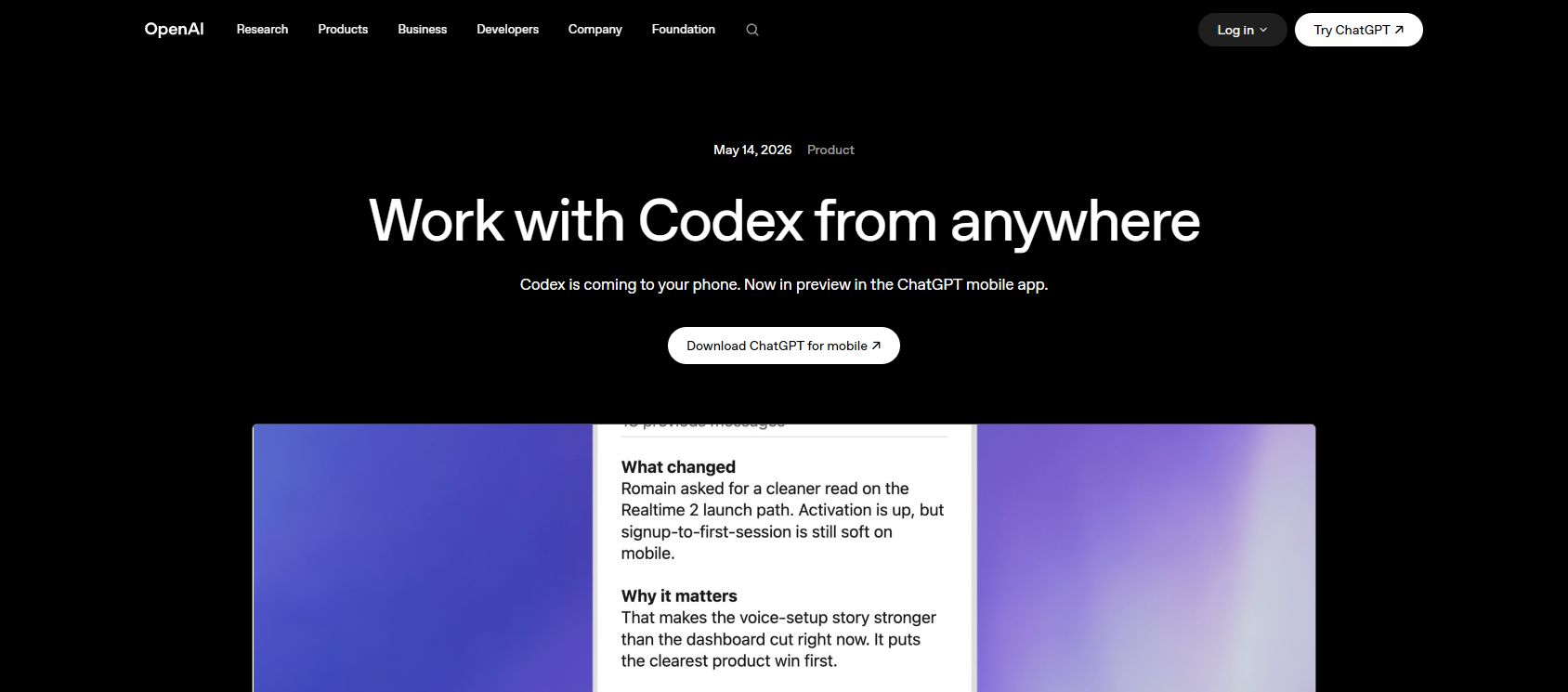
OpenAI’s May 2026 announcement says Codex is now coming to your phone in preview through the ChatGPT mobile app. That matters because many coding-agent tasks stall on small human decisions: approve a test command, answer a scope question, inspect a diff, or ask for one more cleanup pass. Mobile Codex can keep those tasks moving while you are away from your desk.
The catch is important. The phone is not where your repository, dependencies, shell, browser, or credentials live. Your connected host supplies the working environment. The mobile app lets you send instructions, view live outputs, review diffs and screenshots, approve actions, and continue Codex threads. Treat it like remote supervision for a coding agent, not like a reason to skip engineering review.
Who should use this workflow?
This is useful for developers, founders, and small teams that already use Codex for code review, bug fixes, tests, refactors, or pull request cleanup. It is especially useful when the next step is a narrow decision: choose approach A or B, approve a targeted command, ask Codex to reduce scope, or decide whether the result is ready for a pull request.
It is not a good fit for blind production deploys, database migrations, billing changes, secrets-heavy work, broad refactors, or any task where you cannot properly inspect the diff and logs from a phone. Mobile Codex should reduce idle time. It should not reduce your standard for shipping code.
What can you actually do from the phone?
OpenAI’s remote Codex materials describe a workflow where a mobile device can connect to a host, continue existing threads, start new tasks, send follow-up instructions, review outputs, inspect diffs, view terminal output, view screenshots, and approve commands or other actions. In practice, that makes the phone useful at four points:
- Start: capture a bug, issue, or small implementation request while it is fresh.
- Unblock: answer Codex when it asks for direction, scope, or permission.
- Review: check the changed files, test output, terminal output, and screenshots.
- Gate: decide whether the work is ready for PR, needs another Codex pass, or must wait for desktop review.
Setup checklist
As of this article’s publication date, OpenAI’s documentation says the mobile setup flow depends on a Codex host and currently centers on the Codex App for macOS. OpenAI’s announcement also says phone-to-Windows support is coming soon, so teams should re-check the docs before building a Windows-hosted mobile workflow.
- Update the ChatGPT mobile app. If Codex does not appear, update the app first and confirm your account/workspace.
- Prepare the host. Keep the host online, awake, signed in, and running the Codex environment that has access to your repo and tools.
- Connect the mobile device. Follow the Codex app’s mobile setup flow and complete any SSO, MFA, or passkey requirements.
- Check workspace identity. Make sure the phone and host are on the same ChatGPT account and workspace.
- Review device access. Periodically check connected devices and remove old phones or hosts you no longer use.
The practical mobile Codex runbook
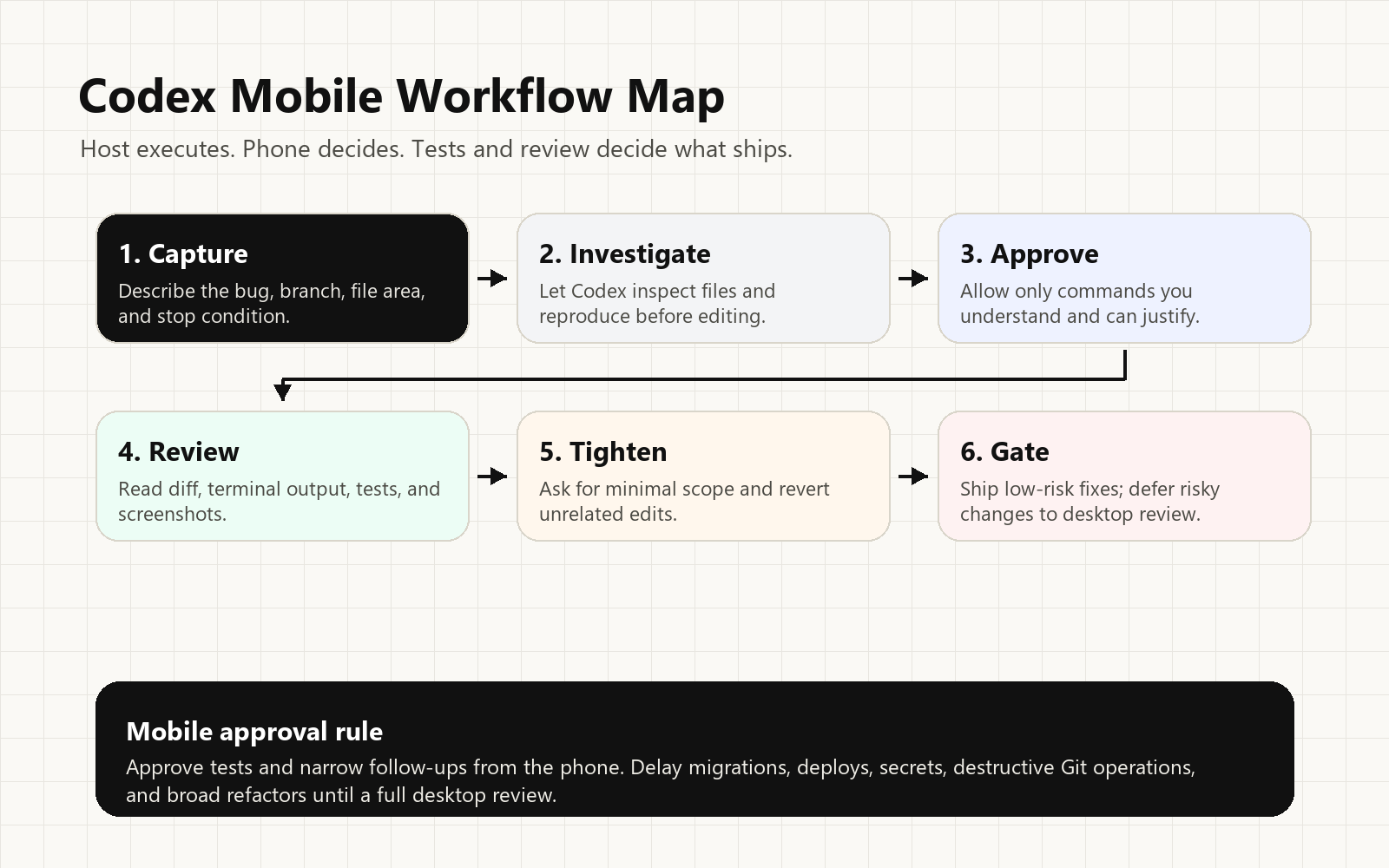
1. Start with a narrow task
Mobile prompts should be smaller than desktop prompts. Give Codex the branch, issue, file area, expected behavior, and a stop condition. A good first mobile instruction looks like this:
Investigate the failing checkout discount test. Do not change production code yet. Find the likely cause, run the narrowest relevant tests, and summarize the options before editing.This keeps the first pass diagnostic. It also prevents a quick phone prompt from turning into a broad refactor.
2. Ask for evidence before approving work
Before you inspect the diff, ask Codex for a compact evidence report:
Before I review the diff, summarize:
1. What changed and why
2. Tests or commands you ran
3. Any failing tests or skipped checks
4. Files touched
5. Remaining risks
If the answer is vague, do not approve the result. Ask Codex to narrow the scope, run the missing test, or revert unrelated edits.
3. Approve commands like a reviewer
OpenAI’s Codex materials describe sandboxing and approvals as core parts of the workflow. On a phone, the practical rule is: approve commands you understand, reject commands that change scope, and delay commands that touch production, secrets, external services, destructive Git operations, or broad dependency changes.
A targeted command such as npm test -- checkout.test.ts is usually phone-reviewable. A command that rewrites history, installs unknown packages, disables checks, or requests broad network access needs a larger screen and more context.
4. Use the phone to tighten the diff
The best mobile follow-up is often not “ship it.” It is one more cleanup pass:
Review your own diff for unnecessary changes. Revert anything unrelated to the stated issue. Keep only the minimal fix, then rerun the narrow test and summarize the result.This turns the phone into a useful quality gate. You can push Codex toward a smaller, easier-to-review result before you return to the desktop.
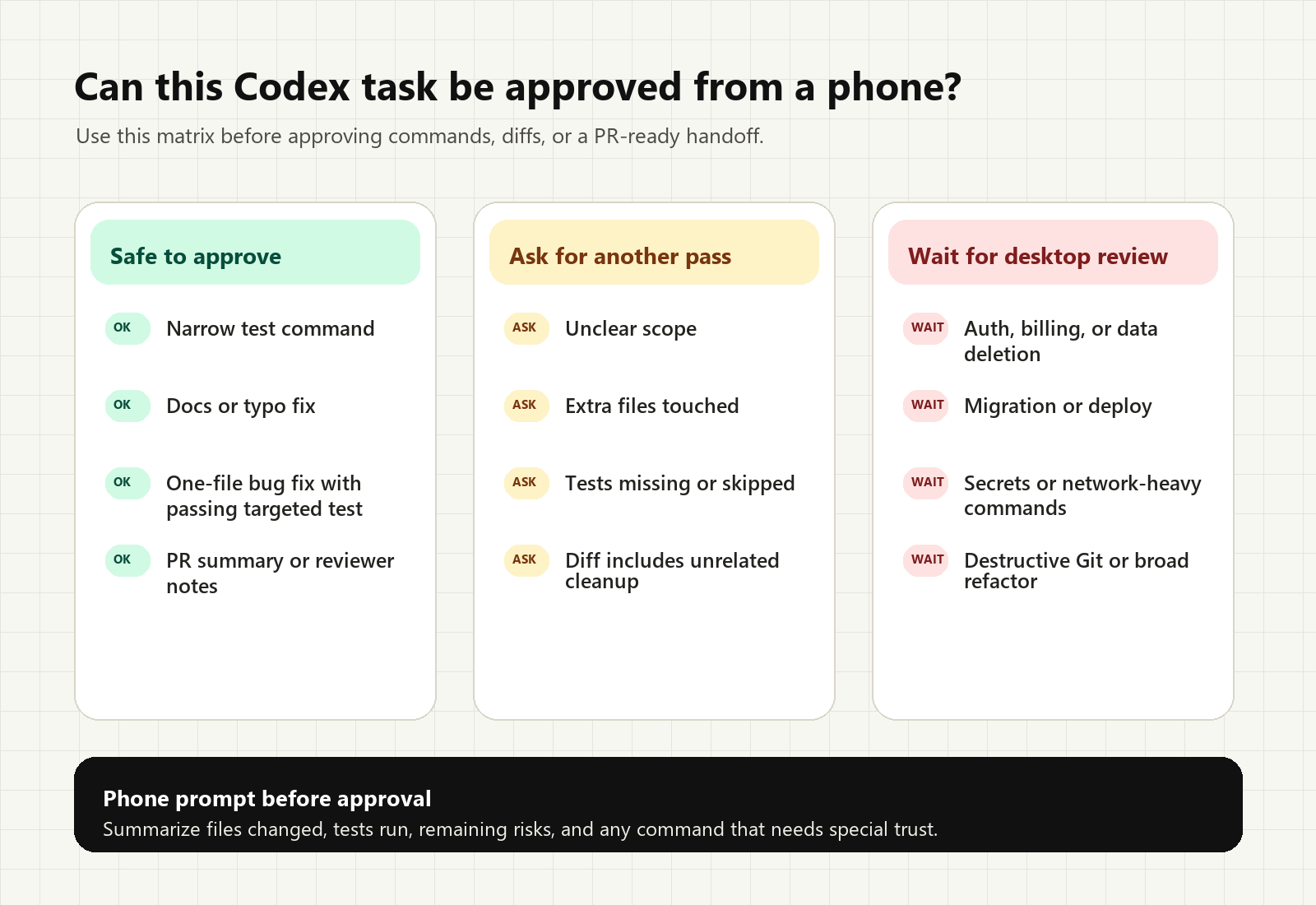
What can ship from a phone?
| Task type | Mobile decision | Ship gate |
|---|---|---|
| Typo, docs fix, narrow test update | Usually safe after diff review | Clean diff and expected test result |
| Bug fix with one clear failing test | Good candidate if scope stays narrow | Failure reproduced, fix applied, test passes |
| Multi-file refactor | Use phone to steer, not final-approve | Desktop review plus CI |
| Migration, auth, billing, data deletion, deploy | Do not ship from phone by default | Desktop review, CI, rollback plan, human owner |
Useful mobile prompts
Bug investigation
Investigate this bug without editing first: [describe bug]. Find the likely files, reproduce if possible, and propose the smallest safe fix.Test-gated fix
Make the smallest change that fixes the failing test. Do not broaden scope. Re-run the specific test and show the command output summary.PR preparation
Prepare a concise PR summary with: problem, solution, files changed, tests run, risks, and what a reviewer should inspect first.Common failure fixes
The host does not appear on your phone: confirm Codex is running on the host, remote access is enabled, and the same ChatGPT account and workspace are selected on both devices.
An approval request does not appear: open ChatGPT on mobile, go to Codex, confirm the workspace, then retry setup. Workspace users may need an admin to enable the required access.
The session disconnects: check whether the host slept, lost network access, or closed Codex. For long-running work, keep the host powered, online, and awake.
FAQ
Can I use OpenAI Codex from the ChatGPT iOS app?
Yes. OpenAI says Codex is coming to the ChatGPT mobile app in preview, allowing developers to supervise and continue Codex work from mobile.
Does the phone run the code?
No. The phone controls the session. The connected host provides the repository, tools, shell, dependencies, and execution environment.
Can I safely ship code from my phone?
Only for low-risk, evidence-backed changes. Use mobile approval for narrow fixes, docs, targeted tests, and PR preparation. Keep migrations, deploys, billing, auth, secrets, and broad refactors for desktop review.
What should I ask Codex to do while away from my desk?
Good mobile tasks include bug investigation, reproducing failures, running narrow tests, preparing a minimal fix, addressing specific review comments, and drafting a PR summary.
Bottom line
Codex on mobile is most valuable when it removes idle time from agentic development. Let the host do the work, let Codex prepare evidence, and use the phone for decisions that are small enough to verify. The best mobile Codex habit is not speed at any cost. It is keeping useful work moving while preserving the same review standard you would use at your desk.
Source note
This article package was generated through the Tovren Editorial OS project in ChatGPT Pro Extended mode, then checked against current official OpenAI sources before publication.
Source log
- OpenAI: Work with Codex from anywhere – mobile Codex preview, phone-based workflow, and announcement context.
- OpenAI: Introducing the Codex app – desktop Codex app context, agent threads, worktrees, and product framing.
- OpenAI Developers: Codex – Codex product and developer workflow documentation.
- OpenAI Developers: Codex CLI – CLI context, local workflow, and approval-mode references.
Refresh triggers
- OpenAI changes Codex mobile from preview to general availability.
- Windows host support ships for phone-to-Codex control.
- OpenAI changes Codex plan availability, rate limits, or mobile setup requirements.
- OpenAI changes sandbox, approval, network-access, or remote-connection defaults.